
An AI voice recorder for personal work and team badges
The SNUGOGO CB08 records offline. The official companion app connects to the card, receives the files, and uploads them only after you choose an address and turn the feature on. A hosted AI workspace can then give you a dedicated HTTPS upload URL, and — if you choose — help you transcribe, summarise, and organise follow-ups.
WorkBuddy expert “录音纪要管家” (Minutes Butler, by 赛博晶灵) is a verified example of this pattern: in your own workspace it can generate a private upload address, then process recordings according to your instructions. Overseas teams can follow the same idea with an AI tool that includes suitable hosting.
Before you record other people, get their consent and follow the recording laws that apply where you are.
Each CB08 has a unique Bluetooth identity. After you bind it in the official app, other people should not be able to connect to your card through that binding unless you unbind it yourself.
Work settings and team badges
The CB08 fits more than one way of working. You can attach it magnetically to the back of a phone and carry it as a personal assistant. You can also use the badge accessories: wear it on a lanyard, clip it to a lapel, or place the card behind an ID badge so it works as a wearable voice recorder in everyday work. This guide uses team badge to mean a recorder worn behind a staff ID, rather than a guide to e-ink displays or access-control systems.
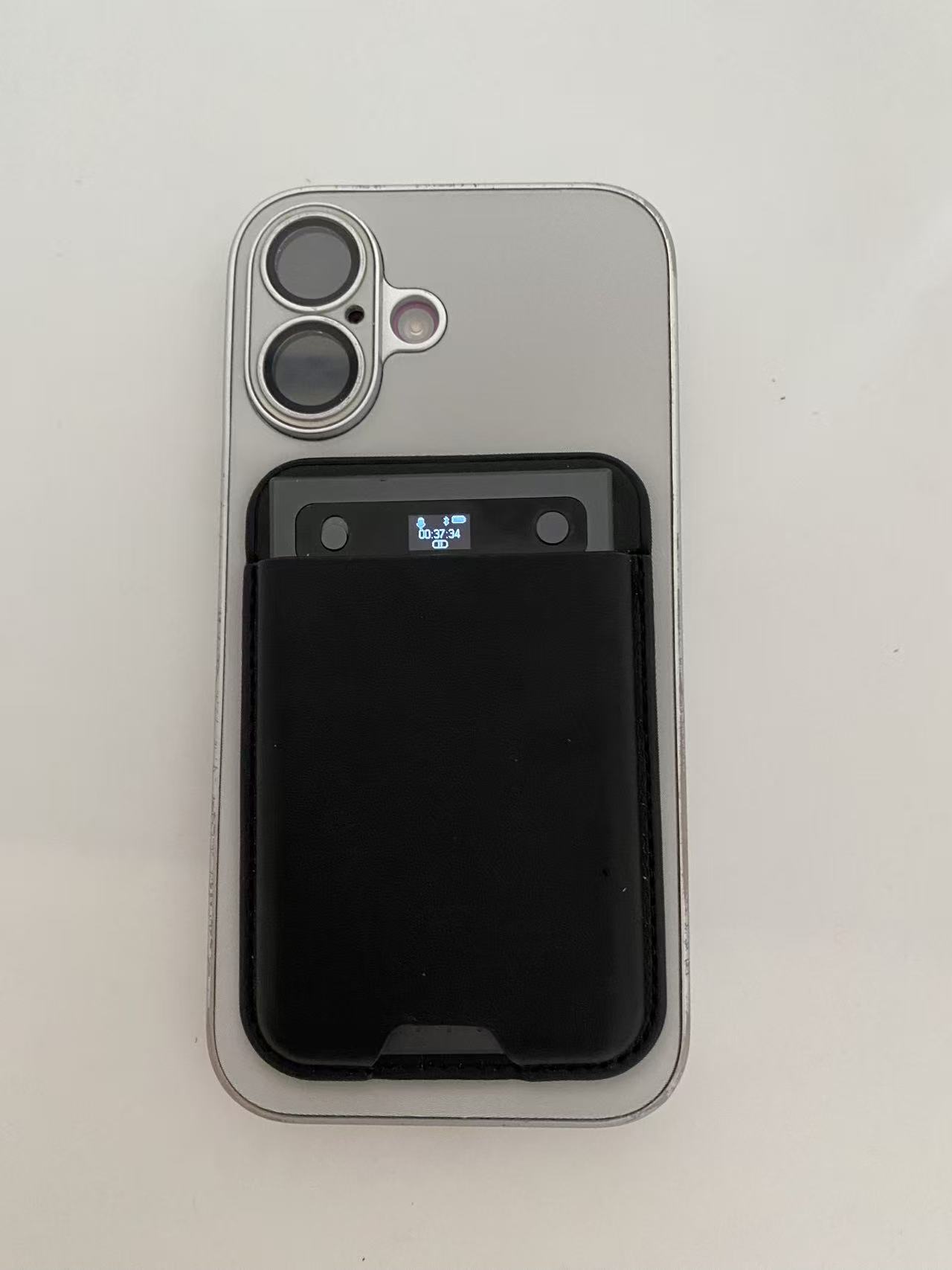
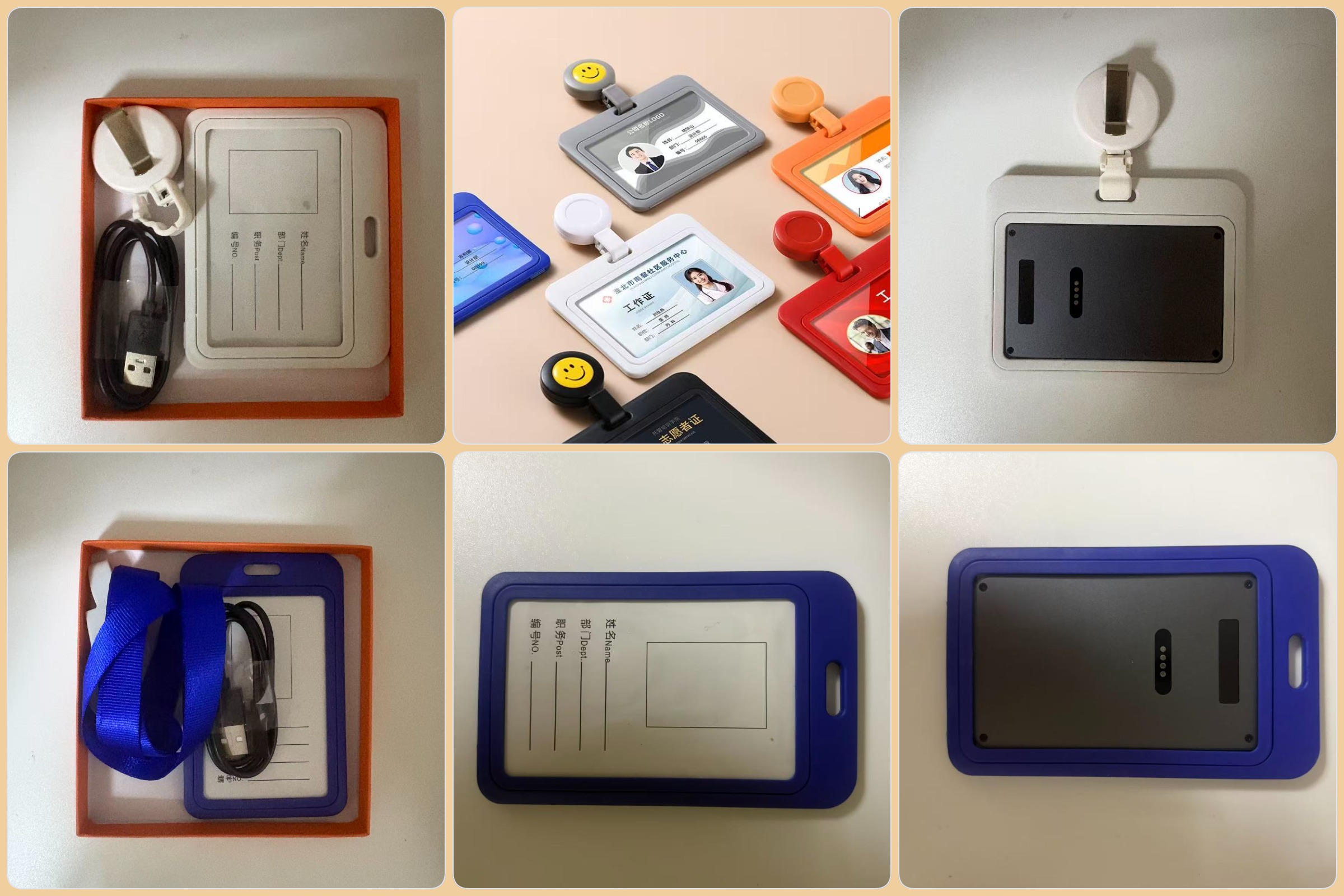
When the card is paired and connected to the phone over Bluetooth, you can start and stop recording from the official companion app. That means the card can stay behind a business card or badge; you do not have to press the record button on the card itself. This is Bluetooth control while the app is connected, not control over the internet, and not a scheduled or unattended trigger.
The people who know the work best are already on your team. Use the recordings as a data input, and use programming skills in a hosted AI workspace so your own specialists can organise records and analyse issues in the way your business actually works. You decide what is recorded, what is kept, and how it is analysed — with the informed consent of the people involved. Bind each card separately so one colleague’s card and recordings are not mixed with another’s.
What the official app needs from an upload address
The official Android app (version 1.1.18 and later) includes Upload to your server. It is off by default, accepts https:// addresses only, and is documented here: Upload AI voice recorder recordings to your own HTTPS server.
In short, the address you paste into the app must:
- be a public HTTPS URL, not a cloud-drive share link and not an ordinary web page
- accept a small JSON “test connection” POST and, on the same URL, a
multipart/form-dataupload of the audio file plus a JSON metadata part - return HTTP 2xx only after the intended upload has been accepted; the app treats that response as success
- keep the files in durable storage, including after a restart, if you want a reliable archive
Get the official app from the app download page.
A verified example: WorkBuddy “录音纪要管家”
The steps below are the verified WorkBuddy flow. Other tools should be judged against the requirements above, not assumed to work the same way.
Please tell the two codes apart if you use this example. One is the WorkBuddy expert share card, used to add Minutes Butler. The other is the WeChat mini program code for the recorder, which is a China-market path for viewing, buying, or using the mini program. International users should use the official app and the purchase links at the end of this article, not the WeChat mini program, as the main path.
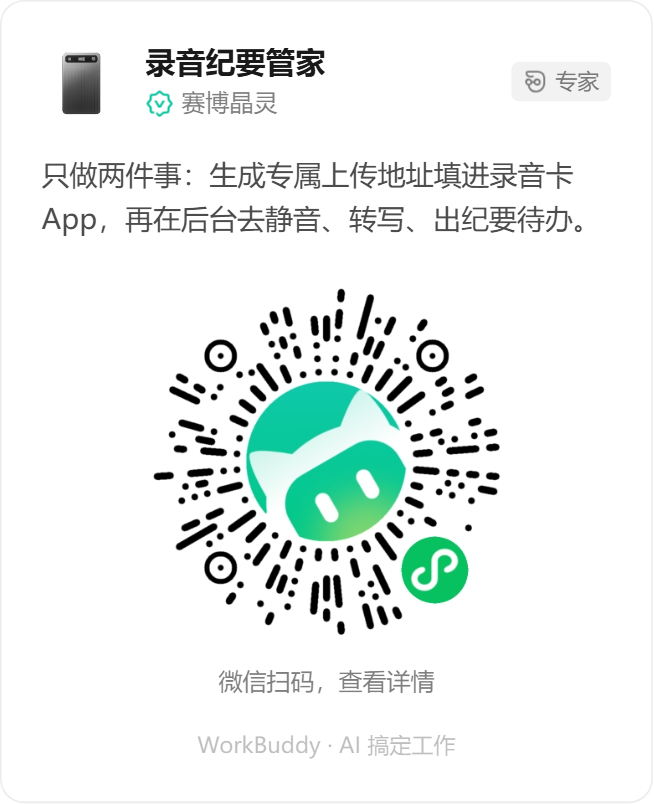
Step 1. Add “录音纪要管家” in WorkBuddy. Open WorkBuddy, follow the marketplace share link to the expert page, and add it. Button labels follow the page. You can also scan the expert share card above.
Step 2. Generate an upload address that belongs to you. In your own workspace, open the expert and complete the setup. For example, you can say: “Please generate an upload address for the recorder card.” You will receive a dedicated HTTPS URL. Treat that address as a key. Do not post it in public. If you think it has leaked, replace it in the workspace as instructed.
Step 3. Connect the device, and decide how files are transferred and deleted. Use the official app to connect and bind your CB08. Whether recordings are transferred from the card to the phone automatically after a connection is your choice. We suggest turning on “delete the recording on the card after it has been transferred successfully.” That deletion applies to files already copied to the phone. A successful transfer to the phone is not the same as a completed upload to the cloud. Confirm that the file is safely stored where you intend before you rely on automatic deletion.
Step 4. Paste the address into the official app. Open Settings and find Upload to your server. Paste the complete HTTPS address. Do not add or remove parameters. When you use this WorkBuddy expert, leave the access token field empty. If you want automatic background upload under the conditions your phone allows, turn on the relevant switches, keep the Bluetooth connection, allow the app to run in the background, and relax or disable battery restrictions as needed. Phones handle background tasks differently. If Bluetooth drops or the system closes the app, restore the connection and let the app run again. The first “Test connection” may take a few seconds; the test itself does not upload a recording.
The WeChat mini program can also accept a custom upload address, but it is a China-market client. When you re-enter the mini program you need to choose the device again, and you should keep the mini program open while you use it. It is not the recommended path for international teams.
Step 5. Receive and organise the files in your own WorkBuddy workspace. After a file arrives, you can keep the audio first and decide later whether to transcribe it. For example: “Please process this recording: remove long silences, transcribe, and draft minutes.” Follow the prompts, listen first, and choose which recordings to process. Credits and pricing follow WorkBuddy’s prompts at the time. You can later adapt the expert to your own industry terms and priorities.
In this WorkBuddy skill, speech-containing segments are selected before transcription, which can reduce credits spent on long silences. You can listen first and then decide whether to transcribe. The skill can also store audio as a high-compression OGG file, which WorkBuddy may host in its cloud at no extra storage charge, so you can retrieve and manage the sound later. These storage and credit behaviours belong to this WorkBuddy skill. Do not assume the same free storage, format, or pricing on another platform. Keep a separate copy of important original files. Credits, capacity, and service rules follow WorkBuddy’s prompts at the time.
Use the English upload guide with Grok Bot
Our team tested this workflow with Grok Bot by providing the PDF guide.
- Download the guide: Download the English custom-upload guide (PDF) (449 KB).
- Give the PDF to Grok Bot and use this prompt:
Read this document and generate an upload URL for me.Then paste the address you receive into the official app, tap Test connection, and confirm with a short recording. Keep a backup of important files.
With an AI tool that includes suitable hosting, you don’t need cloud-architecture skills or to rent and maintain a server yourself. Use the guide to set up uploads, keep team recordings in the cloud for transcription and analysis, or download them for local management. Storage capacity, retention and fees depend on the platform you choose.
You can also point the official app at an HTTPS server you already operate. That path is described in the upload guide.
Questions about this guide
Is this a guide to electronic ID or access-control badges?
This guide uses team badge to mean a recorder worn behind a staff ID, rather than a guide to e-ink displays or access-control systems. The CB08 is a card-size AI voice recorder that can sit behind a staff badge or on the back of a phone.
Can I start and stop recording without pressing the card?
When the card is paired and connected to the phone over Bluetooth, you can start and stop recording from the official companion app, so the card can stay behind a badge or on the back of a phone. This is Bluetooth control while the app is connected, not control over the internet, and not a scheduled or unattended trigger.
How do I upload recordings to a hosted AI tool?
Download the English custom-upload guide (PDF), give it to an AI tool that includes suitable hosting, and use this prompt: “Read this document and generate an upload URL for me.” Paste the address into the official app, tap Test connection, and confirm with a short recording. Storage capacity, retention and fees depend on the platform you choose. Our team tested this workflow with Grok Bot by providing the PDF guide.
Get the card and the official app
International buyers should use the AIHWSTACK product and developer pages, not the China-market WeChat checkout.
- Product overview: SNUGOGO CB08 product page
- Samples, developer tiers, and source-code options: developer page
- Official Android app: aihwstack.com/app
- If you want to build your own app, start from the public MIT Android sample on GitHub.
A sample card is listed at US$55, with shipping included, and can be paid on the developer page with Stripe or PayPal. For other options or a special custom request, contact [email protected].
Related reading: Start and stop a recording from the official app over Bluetooth.
Related
- SNUGOGO CB08 AI Voice Recorder Card
- SNUGOGO CB08 developer page
- Get the AI Recorder Card app
- Own your recordings: upload to your own server
- Start and stop a recording from the official app over Bluetooth
Want to try the hardware behind these notes?
Six AI hardware platforms are in mass production. Tell us your market and channel and we send an evaluation sample.
Request a sample